Windowed stats
So far, we have produced overall event counts, and showed how to maintain a database with the current state of the check-in area from individual events taking place in it. Let’s imagine that there is a new requirement for reporting minute-by-minute statistics by airport area (e.g. all 0XX check-in desks belong to area 0).
We want to have a GET /stats/windowed endpoint with responses like these:
{
  "0": {
    "cancelled": {
      "2025-02-22T12:54:00Z": 18,
      "2025-02-22T12:55:00Z": 26
    },
    "started": {
      "2025-02-22T12:54:00Z": 112,
      "2025-02-22T12:55:00Z": 29
    }
  },
  "1": {... similar to above ...},
  "2": {... similar to above ...},
  "3": {... similar to above ...},
  "4": {... similar to above ...}
}
For example, the above response means that we had 18 cancelled check-ins in area 0 on the first minute of the simulation.
To do this, we will need to set up a new table to hold the appropriate state.
Given that we will need to analyse the data at a different granularity level (grouped by area and minute, rather than per-desk), we will need to re-key the records that we’re consuming from the simulation.
The new key in this case will not be a single value like before: instead, it will be a composite (area, minute) key.
The overall process will look like this:
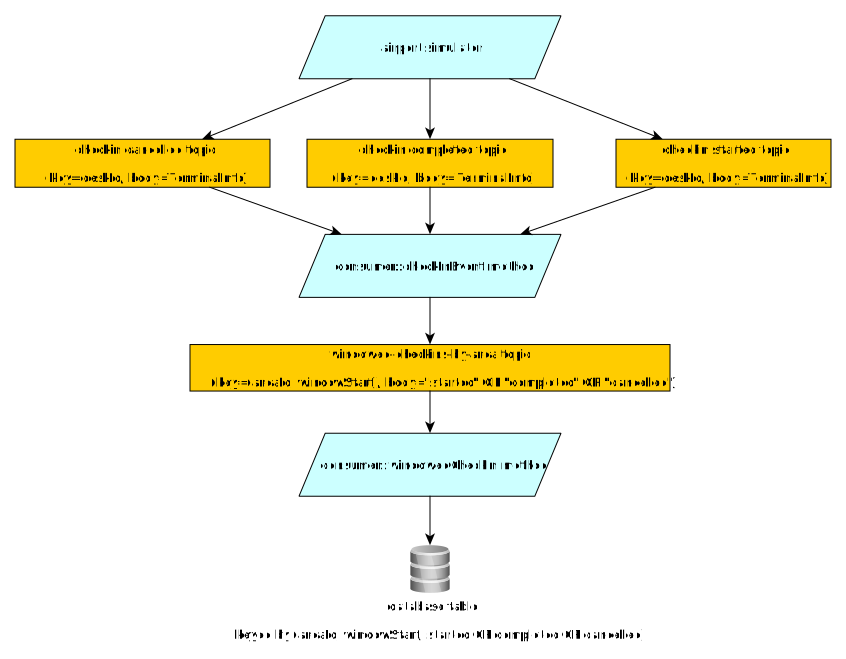
Let’s break down the problem into steps, as usual.
Adding the database migration
Create a database migration script called V4__create-windowed-area-check-in-stats.sql, with this content:
create table windowed_area_checkin_stat (
    id bigint primary key not null,
    area int not null,
    window_start_at timestamp(3) not null,
    name varchar(255) not null,
    value bigint not null default 0,
    constraint uk_windowed_area_name unique (area, window_start_at, name)
);
This table is similar to partitioned_checkin_stat from the first exercise, but it adds two new columns (area and window_start_at) which are part of the unique constraint in this table.
In other words, this table has two keys:
- The “surrogate key”
idwhich has no meaning outside this database, and is automatically create from thehibernate_sequenceby Micronaut Data. - The “natural key”
(area, window_start_at, name)which is relevant to the problem we’re solving: we want to ensure there aren’t multiple rows with this combination, and having this constraint also implies having an index for fast retrieval of rows based on this combination of columns.
Creating the entity and the repository
Similarly to previous exercises, you will need to create a JPA entity for the rows in the table (which would be named WindowedAreaCheckInStat, based on the name of the table).
Create a repository for the entity, and add a custom query that can find the entity with a specific (area, windowStartAt, name) combination.
Creating the key record
We want to re-key (desk_id, terminal_info) records into ((area, minute), event_name) records.
This is to ensure that it will always be the same consumer manipulating the relevant row in windowed_area_checkin_stat.
Since the new key is not a predefined Java type (like long) but rather a composite of multiple values, we need to create our own @Serdeable class with that combination.
The simplest thing is to use a record.
Create a windowed subpackage inside your events package, and add this CheckInAreaWindow record to it:
@Serdeable
public record CheckInAreaWindow(int area, long windowStartEpochMillis) {}
We will use CheckInAreaWindow instances as the key of our internal topic.
Note that internally, Kafka sees the key of a record as just an arbitrary sequence of bytes, which is hashed to decide the partition.
In this case, the @Serdeable annotation will ensure that it is serialised on the fly into JSON before being sent to Kafka.
Creating the internal topic
We will need an internal topic as destination for the re-keyed ((area, minute), event_type) records.
Within the new windowed subpackage, create a WindowedAreaCheckInsTopicFactory class that sets up this topic:
- It should be annotated with
@Requires(bean=AdminClient.class), so Micronaut sets up the Kafka administration client before this one. - It should also be annotated with
@Factory, so Micronaut knows it’s a class that contains factory methods (i.e. methods that create new beans to manage). - It should have a method annotated with
@Beanwhich takes no parameters and returns aNewTopicwith a unique topic name of your choosing, 3 partitions, and replication factor equal to 1. Note that we’re using replication factor 1 for simplicity, as Micronaut Test Resources only sets up a single-node cluster. Most likely, we’d want to make this configurable, but this is outside the scope of this practical.
You should keep the name of the internal topic in a TOPIC_WINDOWED_CHECKINS String constant inside this class, as you will need to refer to it from elsewhere.
In case you’re unsure about how to write this factory, you may want to refer to the AirportTopicFactory in the simulator project as an example.
Creating the producer for the internal topic
We have the key type and the factory for the internal topic: we need the producer interface for it.
Create the WindowedAreaCheckInsProducer interface in the windowed subpackage.
It should be annotated with @KafkaClient (as it is a producer).
The interface should have a method that doesn’t return anything and is annotated with @Topic(TOPIC_WINDOWED_CHECKINS).
It should take two parameters:
@KafkaKey CheckInAreaWindow key, the key for the record.- The event type (e.g. a String within {“started”, “completed”, “cancelled”}).
Writing the consumers
We’re finally ready to write the consumer class. The consumer should do the following:
- Consume
(desk_id, terminal_info)events from the topics related to starting, completing, and cancelling checkins, and produce new events into the internal topic. Each new event would have aCheckInAreaWindowas key, and an indication of whether the check-in is being started, completed, or cancelled as the body.- The area of the key will just be the hundreds digit of the desk ID (
deskId / 100): we have 500 desks in the simulation so this will be enough. - The
windowStartEpochMillisrefers to the start of the 60-second time window that this record refers to, and it will be measured in milliseconds since the epoch (UNIX time 0, or1970-01-01 00:00). For instance, if the current time (measured in milliseconds since the epoch) iscurrentTimeEpochMillis, this can be computed as:currentTimeEpochMillis - (currentTimeEpochMillis % 60_000)
- The area of the key will just be the hundreds digit of the desk ID (
- Consume the re-keyed events in the internal topic, and create or update the relevant
WindowedAreaCheckInStat.
Testing the re-keying via Mockito
Before writing the controller that will return the data collated by the new consumers, we need to test those consumers. The consumer class has two behaviours to test: the re-keying (which involves producing records), and the updating of the database. We will test them separately, so we do not need to involve the Kafka cluster for our unit testing.
Create a new WindowedAreaCheckInsConsumerTest test class.
To test that the consumer re-keys events as expected, we will swap the producer during testing with a mock.
Instead of sending the event to an actual Kafka cluster, we will capture the method invocation so we can check the producer was called with the right arguments.
We need the Mockito library for this, so add it to the dependencies in your build.gradle file:
// For the producer tests
testImplementation("org.mockito:mockito-core:5.15.2")
Since you changed the build.gradle file, make sure that your IDE reloads the Gradle project as needed.
In IntelliJ, you would need to press the “Reload All Gradle Projects” button as we did at the beginning of Practical 2.
Now that we have Mockito for testing, create a new WindowedAreaCheckInsConsumerTest test class.
As usual, you will want to annotate it with @MicronautTest(transactional = false), and you will need to inject the consumer, the producer, and the repository that you developed in this section.
You should also have a test setup method that deletes all the rows before each test.
The next step is to add the following method, which will create the mock that Micronaut should use during testing:
@MockBean(WindowedAreaCheckInsProducer.class)
public WindowedAreaCheckInsProducer getProducer() {
  return mock(WindowedAreaCheckInsProducer.class);
}
The method works as follows:
@MockBeantells Micronaut to swap the producer that would normally be used with the object returned by this method. It’s only active during this test.- The
mockmethod is from Mockito (org.mockito.Mockito.mock). It creates a mock implementation of the given type: its methods will have mostly empty implementations which only capture the parameters they were called with.
We can now add the proper test, which should invoke the consumer method that does the re-keying, and then check that the producer was appropriately called through the verify method in Mockito.
For instance, if we sent an event that a check-in was started at millisecond 60100 after the epoch, we could check that the producer was correctly invoked like this:
verify(producer).checkin(
  eq(new CheckInAreaWindow(1, 60_000)),
  eq("started"));
The eq method is also from Mockito, and it is an example of an argument matcher.
The above code means “producer.checkin() should have been called with arguments equivalent to these”.
Testing the consumer’s database updates
Since we tested the re-keying on its own, we can now test the database updates separately as well.
Add test methods to WindowedAreaCheckInsConsumerTest that check that the database is updated as it should from the re-keyed events.
Extending the controller
Once we know that the consumer works as it should, you can extend your /stats controller with a new endpoint for GET /stats/windowed that returns JSON output like the one at the beginning of this section.
Given the shape of the expected JSON output, you could use one of these return types for the new controller method:
Map<Integer, Map<String, Map<String, Long>>>(just using standard Java collections): an area -> statistic name -> timestamp -> value map. You can produce the timestamp from anInstantobject by calling itstoString()method.Map<Integer, AreaStatistics>(whereAreaStatisticswould be a new DTO).
Using one return type or the other is up to your preference.
Trying everything together
Start the simulation, then start your application, and try calling your GET /stats/windowed endpoint periodically.
You should see it start to aggregate events by the minute as time passes on, and it should automatically separate check-ins by minute and area.