Tools
- A ready-to-use Eclipse bundle with all required tools (EMF, Emfatic, Flexmi) pre-installed is available in the lab machines
- Once you have logged into Windows, search for
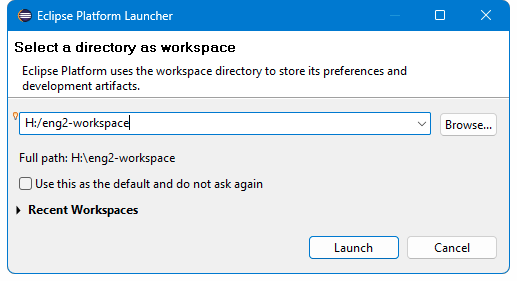
Epsilon 2.8in the Start Menu - When prompted to select the location of your Eclipse workspace, you must select a folder under the
H:drive e.g.H:/eng2-workspace
Warning
Do not use backslashes in your workspace directory path under the
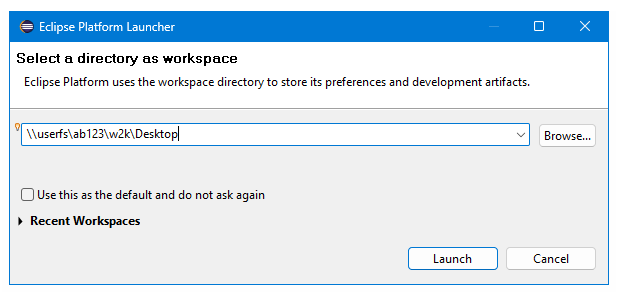
H:drive as this is a network drive and there are issues with paths under network drives that we’ve brought to the attention of IT Services. As a workaround, please use forward slashes instead (i.e.H:/eng2-workspaceinstead ofH:\eng2-workspace).Also, when you launch Eclipse for the first time it may prompt you to place your workspace under a network path (e.g.
\\userfs\ab123\w2k\Desktop) as shown below. If you select such a path instead of a path under theH:drive, you are likely to receive cryptic error messages later on.
Tip
As an alternative to the
H:drive, you can place your workspace somewhere under theC:drive and use a GitHub/GitLab repo to store your work so that you can also access it from home.
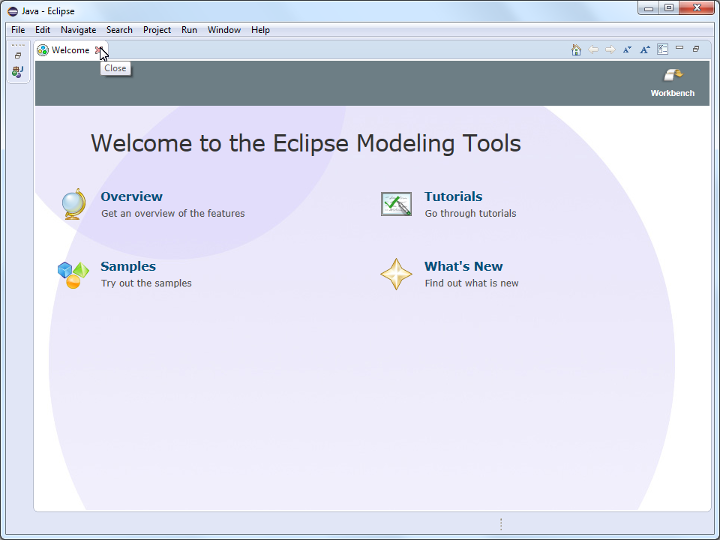
- Close the
Welcomeview
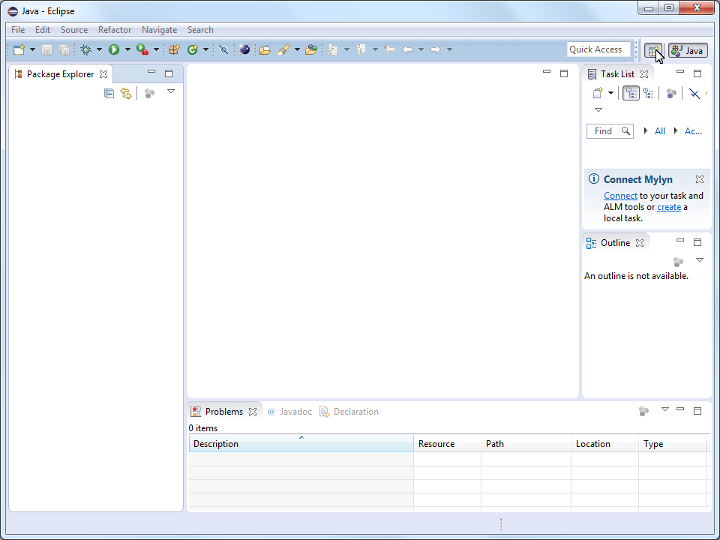
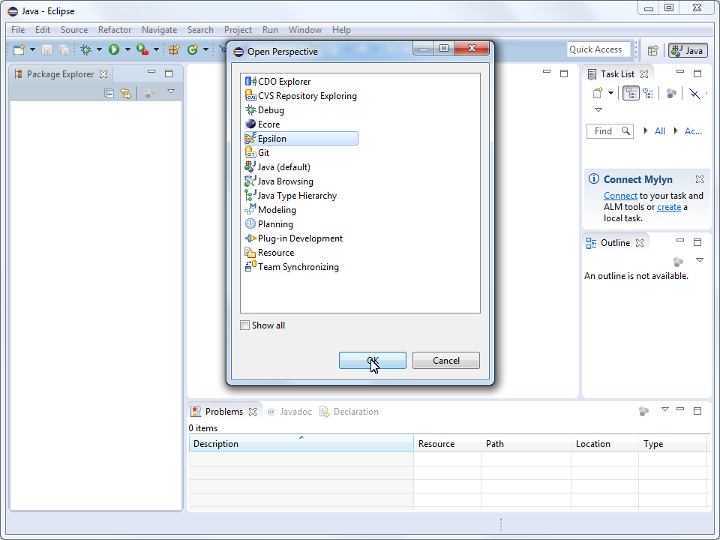
- Open the
Epsilonperspective
Installing the ENG2 tools on your computer
- If you prefer to install the ENG2 tools in your computer, please follow the instructions under the
How to set up Eclipse in your computer for Part 2 (model-driven engineering)page on VLE - If you already have a copy of Eclipse installed in your computer, it will most likely not contain the tools you need for ENG2